-1.png?width=1150&height=344&name=Priceline%20Agoda%20Global%20Partner%20Services_Full%20Logo%20(23)-1.png)
.png)
Partner Portal guide
Read your ARI report with confidence
A step-by-step walkthrough for downloading your ARI report from Partner Portal and reading what it tells you about your rates, availability, and inventory.
Step by step
.png?width=1776&height=230&name=image%20(19).png) ↑ Back to top
↑ Back to top
Downloading the ARI report in Partner Portal
Follow these steps to navigate to the ARI report in Partner Portal.
- Go to Rates & Availability > Agoda ARI.
- Select the date range you want to review, up to 28 days at a time.
- Apply filters for specific room types or rate plans if you need to narrow the results.
- Download the report in Excel format.
↑ Back to topUnderstanding the report
 ↑ Back to top
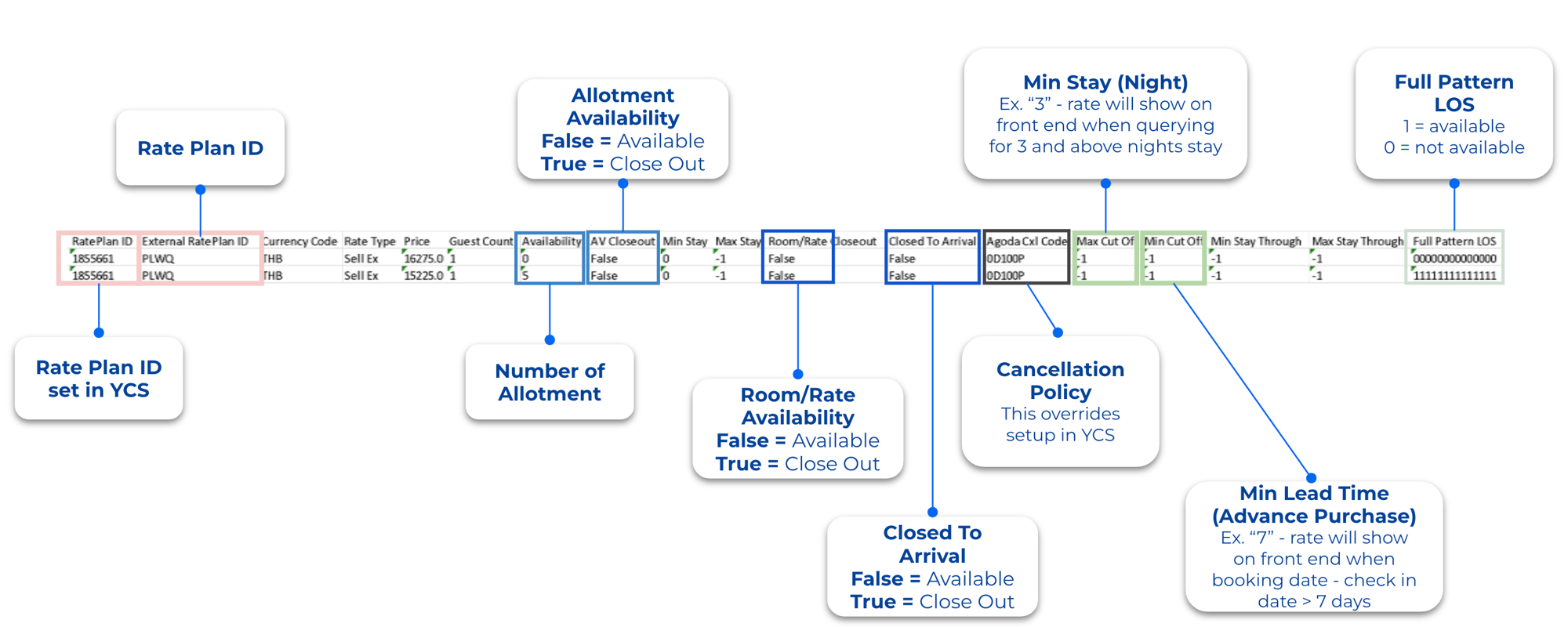
How to read the ARI report
ARI stands for Availability, Rates, Inventory — the three things this report tracks for every room type and date in your selected range.
Use the column headers in your downloaded report to match each metric back to a specific room type, rate plan, and date.
↑ Back to topUnderstanding the report
 ↑ Back to top
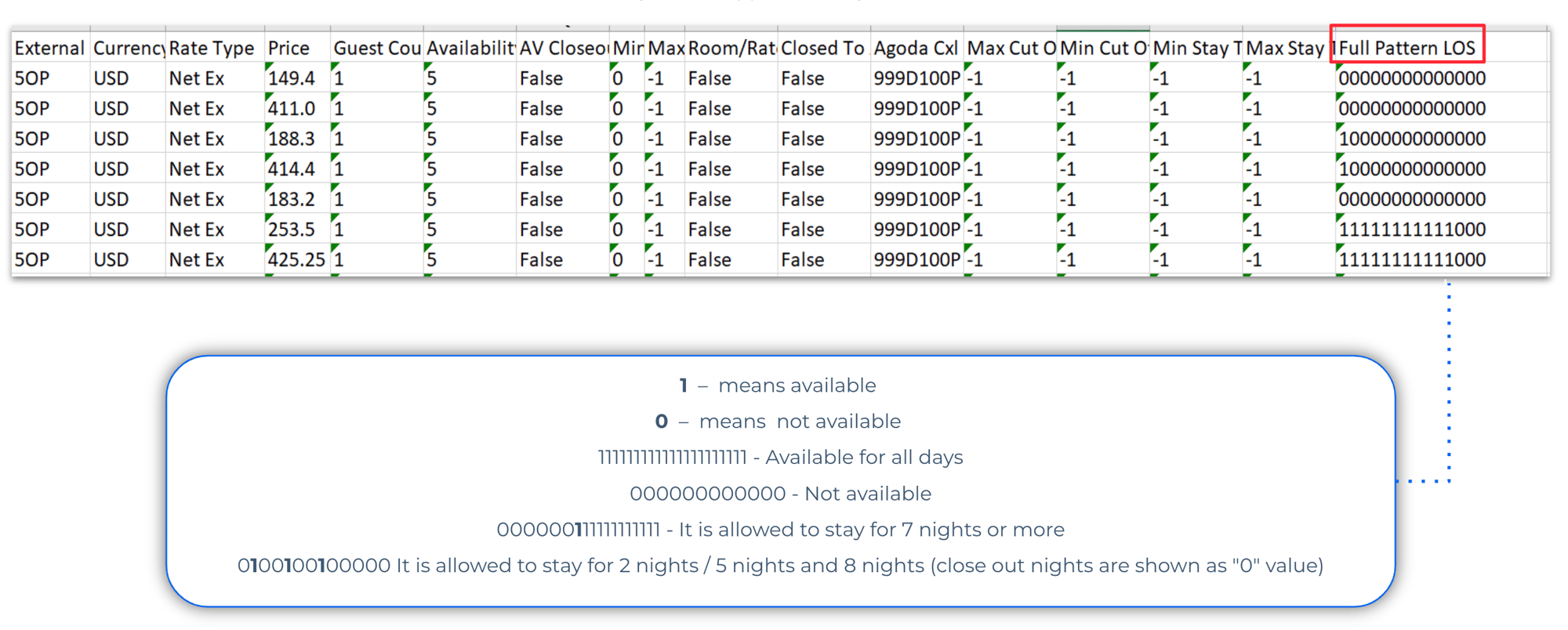
How to read FPLOS
FPLOS stands for Full Pattern Length of Stay. It shows the minimum and maximum length-of-stay restrictions across your booking window.
FPLOS may not apply to every chain. If you don't see it in your report, it's not part of your current setup.
↑ Back to top © 2026 Priceline.com and Agoda.com. All rights reserved.