-1.png?width=1150&height=344&name=Priceline%20Agoda%20Global%20Partner%20Services_Full%20Logo%20(23)-1.png)
Manage payments in YCS
YCS is Priceline Agoda's extranet for your property. Manage bookings and payment, track performance, and keep your listing current.
| • Manage bookings and payment | • Access analytic tools |
| • Select your competitor set | • Activate promotions |
| • Update contact information |
How payment works on a booking
Each booking is delivered into your property management system with the reservation details and a unique payment card, or UPC, attached. Use the UPC to charge the guest for the stay.
Amended bookings
We'll send an amendment email, with "AMENDED" in the subject line, along with an amended hotel voucher confirming the change. You can also check the update in Partner Portal.
- Go to Partner Portal > Bookings > View Bookings.
- Check the color of the Booking ID: XXX text. Yellow means the booking is amended.
- The booking amount in Partner Portal reflects the latest update. Charge the amount shown in the amended hotel voucher.

Cancelled bookings
What you can charge for a cancelled reservation depends on the cancellation policy that was active at the time of booking. Only charge the UPC for the amount that policy allows.
- Go to Partner Portal > Bookings > View Bookings.
- Check the color of the Booking ID: XXX text. Red means the booking is cancelled.
- The booking amount in Partner Portal reflects the latest update.
A faster way to get paid
UPC on ePass, available through Partner Portal > Finance, generates a single-use virtual card so you can settle multiple bookings in one payout batch.
How to settle payments
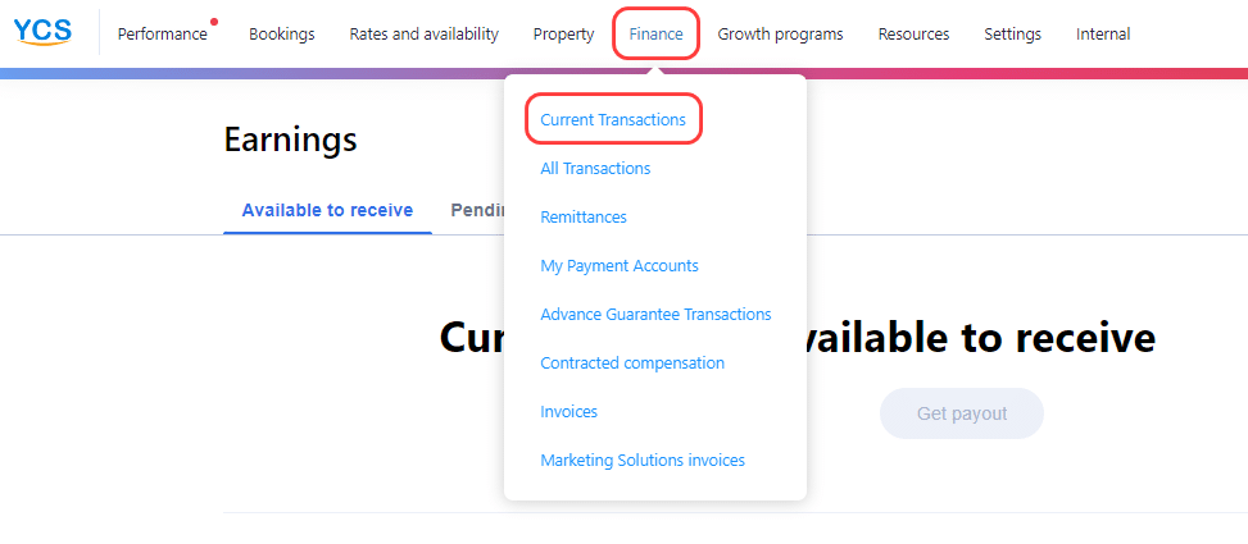
- Go to Partner Portal > Finance > Current Transactions. You may be asked for a one-time passcode sent to your registered email.
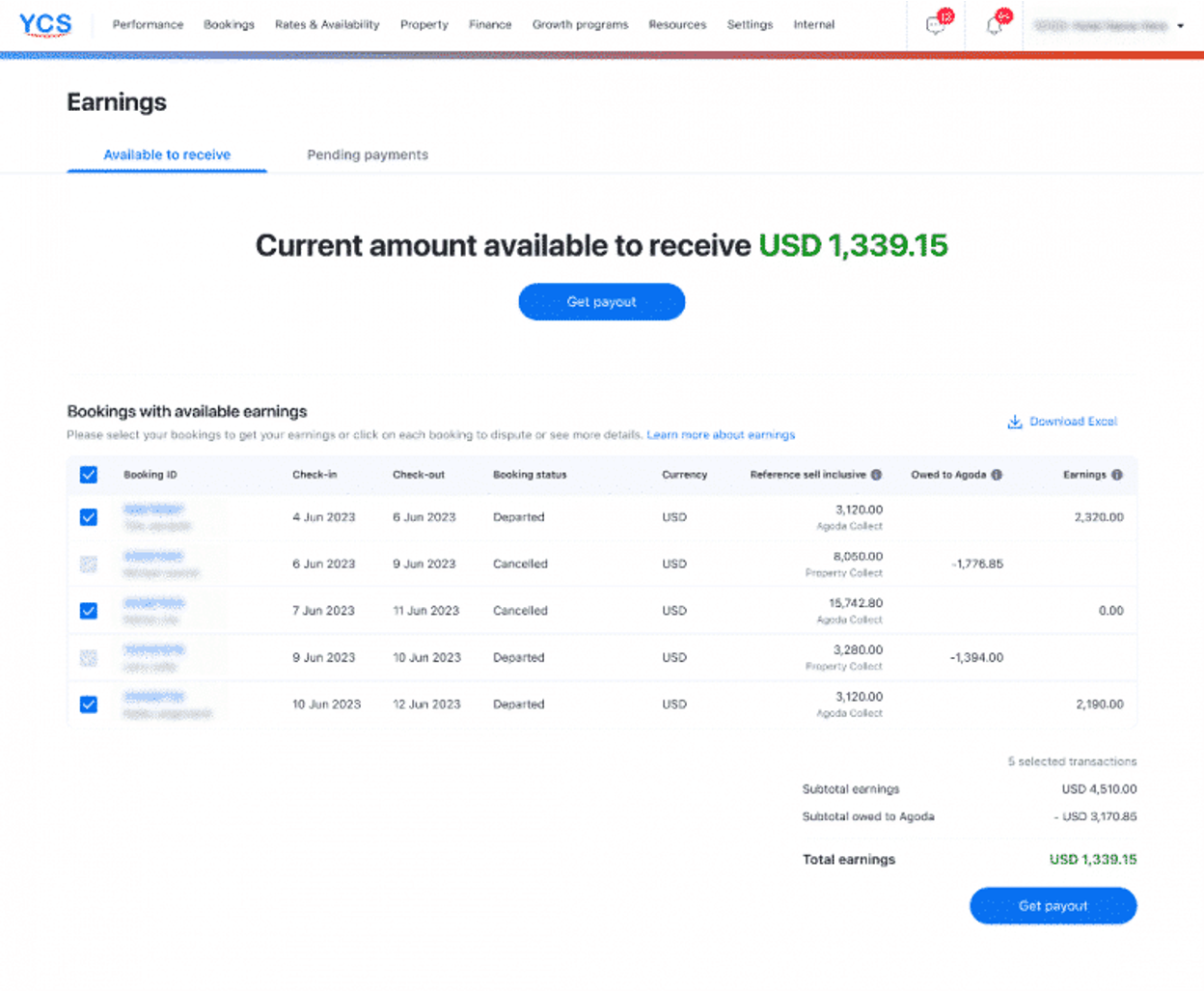
- The Current Transactions – Earnings page shows your total available earnings and which bookings are eligible. Eligible bookings are ticked by default. Untick anything you don't want in this payout batch.
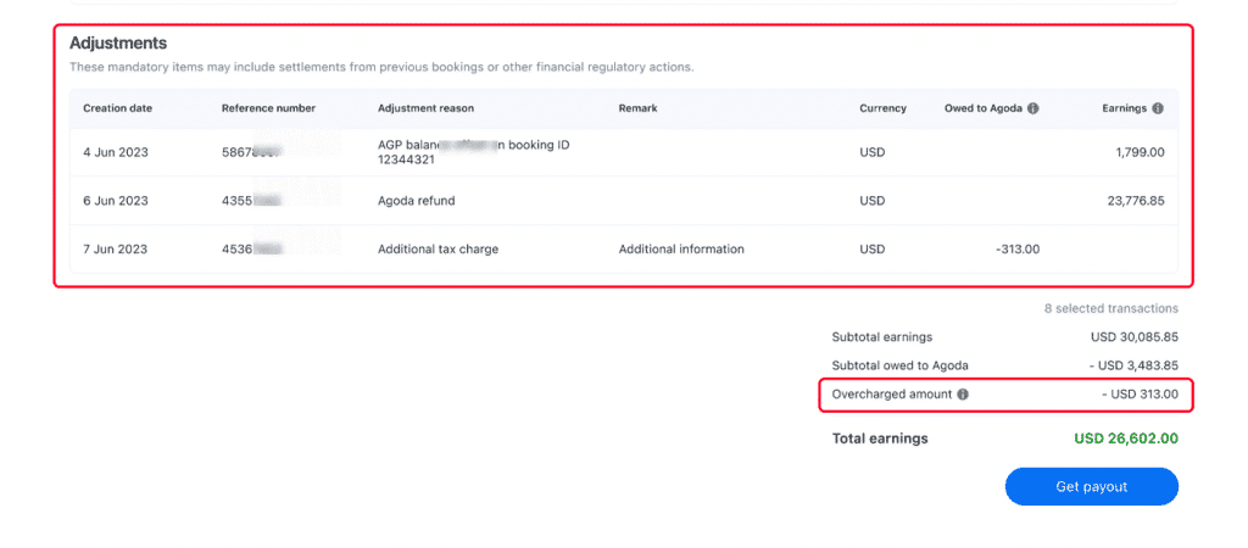
- Scroll to the Adjustments section to review any adjustment transactions.
- Click Get payout to view your earnings summary. You can only submit a payout if the net value is positive.
- If everything looks right, click Confirm.
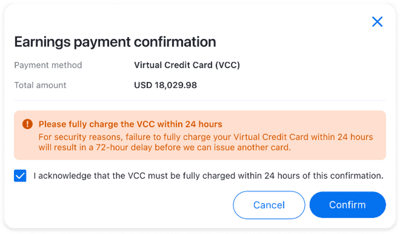
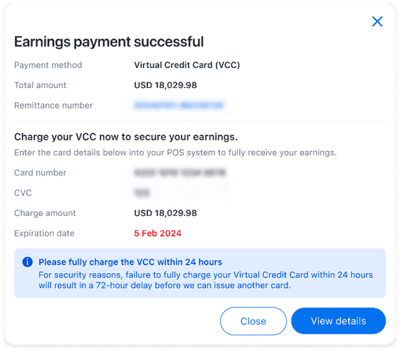
- Charge the total amount to your UPC. Depending on your user role, you'll see masked or full card details.
- Your approved payout batch appears in Partner Portal > Finance > Remittances. Settled bookings drop off the Earnings page.
What are adjustment transactions
The Adjustments section on the Current Transactions – Earnings page shows manual corrections we've made so your earnings stay accurate, for example:
- Charges for rejecting a confirmed booking
- An incorrect tax rate on a booking
- A different cancellation policy agreed with the guest
- Outstanding balances or overcharges
How to issue a new UPC
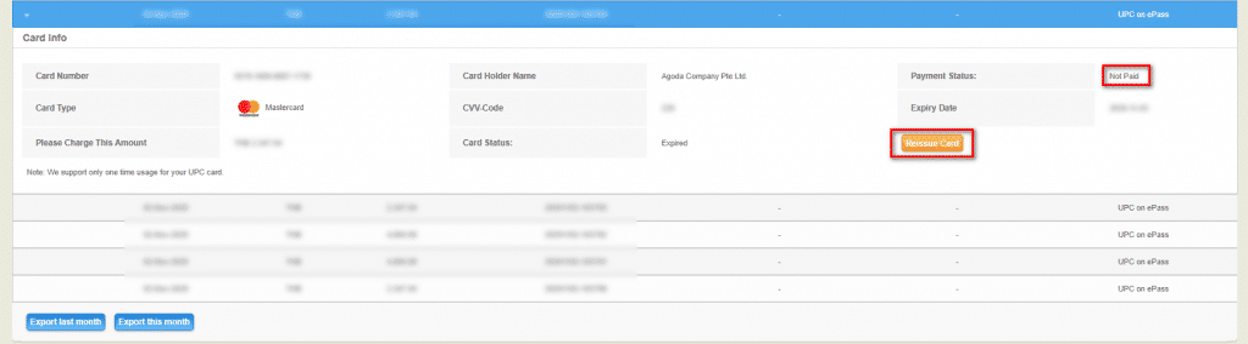
If you don't charge the UPC within 24 hours of issuance, you'll need to reissue it. The payment status must be Not Paid.
- Go to Partner Portal > Finance > Remittances and find the payout batch you need to reissue.
- Find the orange Reissue Card button under the batch's expiry date.
- Charge the full amount to the new UPC within 24 hours so it doesn't expire again.
- You can reissue a UPC up to three times per batch. Contact us if you need it again after that.
Handling partial charges on UPC ePass
UPCs can only be charged once, so charge the full payout amount. A partial charge leaves a balance pending, which usually happens because of:
- Bulk-approved transactions that weren't fully charged
- POS or EDC terminal limits
- Reverse authorization on an unsettled batch
- A POS or EDC error during charging
- Charge the partial payout amount.
- Confirm the batch shows as Paid in Partner Portal > Finance > Remittances.
- If the status is Authorize (Not Returned), contact us for a top-up via Partner Portal > Need Help > Payments > Payment inquiry > Manage payments > Contact Agoda.
- If the status is Reverse Authorization (Returned), confirm with your bank, allow up to 14 days, then contact us the same way.
Frequently asked questions
Is there a limit to how many UPC approvals I can submit per day
What if the 150-day window for claiming my earnings has passed
Why can't I charge the UPC even though it's been less than 24 hours
How do I settle payments for amended or cancelled bookings
Why can't I view the complete UPC and CVV number
I reversed the authorization, why does the payment status still show as Paid
I want to add a booking to a batch I already submitted, can I redo it
My POS terminal limits how much I can charge at once, can I charge my UPC multiple times
More guides for your property
A step-by-step walkthrough for downloading and reading your ARI report in Partner Portal.
Read the guide →Manage roles and access levels for your property's Partner Portal users.
Read the guide →Boost guest confidence and conversions with a stronger Priceline Agoda listing.
Read the guide →