-1.png?width=1150&height=344&name=Priceline%20Agoda%20Global%20Partner%20Services_Full%20Logo%20(23)-1.png)
.png)
How do I collect payment on UPC?
Every Priceline Agoda booking comes with its own virtual credit card, called a UPC or VCC, that partners may charge to collect payment. Here's how to find your card, charge it correctly, and resolve common errors or overcharges.
| • No transaction fees for your property | • Valid 5 months from creation |
| • Deactivates 150 days after guest checkout | • Managed in Partner Portal > Bookings > Reservations |
What is a UPC?
Each Priceline Agoda booking comes with its own virtual credit card you charge to collect your payment. You may also see this called a UPC or VCC. Both terms mean the same thing.
Your property doesn't pay any transaction fees for charging a UPC. Each card is valid for 5 months from the date it's created, and it deactivates automatically 150 days after the guest's checkout date.
Where do I find my UPC details?
- Sign in to Partner Portal. If you manage more than one property, select it under Listings.
- Go to Bookings > Reservations.
- Search for the booking, then select the Booking ID to expand it.
- Under Get Payout (UPC), select Click to View.
- A pop-up shows the card number, CVV, and expiration date.
Charging the UPC
Charge the UPC for the amount shown in the Booking Details tab, using your credit card machine. A few things to keep in mind:
- The UPC may not be funded and available for collection prior to the payout date outlined in the terms of our agreement.
- Charge the exact amount on the booking confirmation or the Booking Details tab. Charging any additional amount will decline the transaction.
- The UPC covers the room reservation only. Guest incidentals like the minibar or parking should be settled directly with the guest, not the card.
- Do not pre-authorize the card before charging it. The card is already guaranteed, so pre-authorization isn't needed, and it may invalidate the card. If this happens, contact us to request a new one.
- You have 150 days after the guest's checkout date to charge the card. After that, the booking is removed from the system and the payment is no longer available to claim.
Amended and canceled bookings
Amended: You'll get an email with "AMENDED" in the subject line, along with an updated booking confirmation. In the Partner Portal, the Booking ID will appear in yellow. Charge the amount on the updated confirmation.
Canceled: You'll get an email with "CANCELED" in the subject line showing the new payable amount, based on the cancellation policy that was active when the booking was made. In Partner Portal, the Booking ID will appear in red. Only charge the amount the cancellation policy allows.
Partial charges
If you first authorized only part of the total:
- Use the same authorization code to charge that partial amount first.
- Then authorize and charge the remaining balance.
Common error codes and how to fix them
"Security Violation" — Appears after 5 failed charge attempts. Wait 1 hour, then try again with the correct card details and a stable internet connection.
"Card Blocked FRE10" — Appears if the card is used outside of booking-related charges. Check with your card machine provider to confirm your terminal is set up for a lodging merchant category (hotel, motel, resort, or central reservation service). Contact us if the issue continues.
Overcharges
If you charge the UPC more than the billable amount, we'll email you every Monday with an overcharge report and an invoice, asking you to refund the excess to the same UPC. You have 2 weeks to refund the amount before it's charged back through your bank.
Frequently asked questions
Do I need to pre-authorize the UPC?
Can I charge based on price per night instead of the total?
What if I can't view the UPC card details?
What's the deadline to charge a UPC?
Payment issues via Unique Payment Card (UPC)
I cannot find my UPC information on Partner Portal
I cannot charge payments via UPC
For detailed instructions on charging payments via UPC, refer to Charging the UPC above.
Below is a list of solutions to the most common issues with charging payments via UPC:
| Issue/Error | Cause | Solution |
|---|---|---|
| Insufficient Funds | Attempting to charge an amount higher than the booking value. | Ensure that you charge the exact amount displayed on the booking confirmation. To check that the amount is accurate, refer to the Payment & Pricing details under Partner Portal > Bookings > Reservations > Booking details > Payment & pricing. |
| Security Violation | There have been 5 failed attempts to charge the UPC within the past hour. | Wait 1 hour before attempting to charge the UPC again. During this time, verify that all payment details are accurate and that your internet connection is stable. |
| Card Blocked FRE10 | The UPC has been blocked due to use for purposes other than booking-related payments. | Contact us to remove the block. |
| A recent change in your card machine's merchant | The UPC cannot be charged due to a recent change in your card machine's merchant. | Contact us for further assistance. |
| The UPC does not accept 3Ds transactions | The property uses a 3D-Secure (3Ds) POS terminal, a feature to protect against fraud. Since 3Ds only applies to eCommerce transactions, and Agoda does not interact with the property through eCommerce, these transactions are blocked. | Charge the UPC with a different POS terminal that is not 3Ds-enabled. |
| Transaction not supported by the card issuer | Missing or incorrect data entry (expiry date, CVV, or incorrect input of 16 digits). | Double-check and re-enter: card number, expiry date (MMYY), and CVV. |
| Invalid card number | Incorrect 16-digit card number. | Check that the 16-digit card number has been entered correctly. |
| "Stolen card" or "Lost card" | This UPC is marked as stolen or lost and cannot be charged. | Contact us for further assistance. |
My UPC has expired
The UPC becomes available to charge one day after the booking check-out date and must be charged within 150 days. The UPC then expires after the 150-day period.
It's important to charge the UPC on time. After the 150-day period, the earnings will no longer be available for you to claim.
What should I do if I have accidentally authorized/charged the wrong amount?
If you've authorized or charged a partial amount of the booking value, settle that amount first, then charge a second transaction with the remaining amount of the booking value. See Partial charges above.
If you've authorized or charged an amount higher than the booking value, refund the excess amount through the same UPC used for the original transaction.
We recommend verifying the booking amount before authorizing or charging the UPC. Attempting to authorize or charge an amount higher than the booking value may result in an Insufficient Funds error.
What should I do if I find a fraudulent transaction?
Still stuck?
Our Partner Portal virtual assistant can walk you through most UPC payment issues in just a few clicks, no waiting for a live agent required. Click Need Help in Partner Portal, then follow the path below to get support on the most common UPC topics:
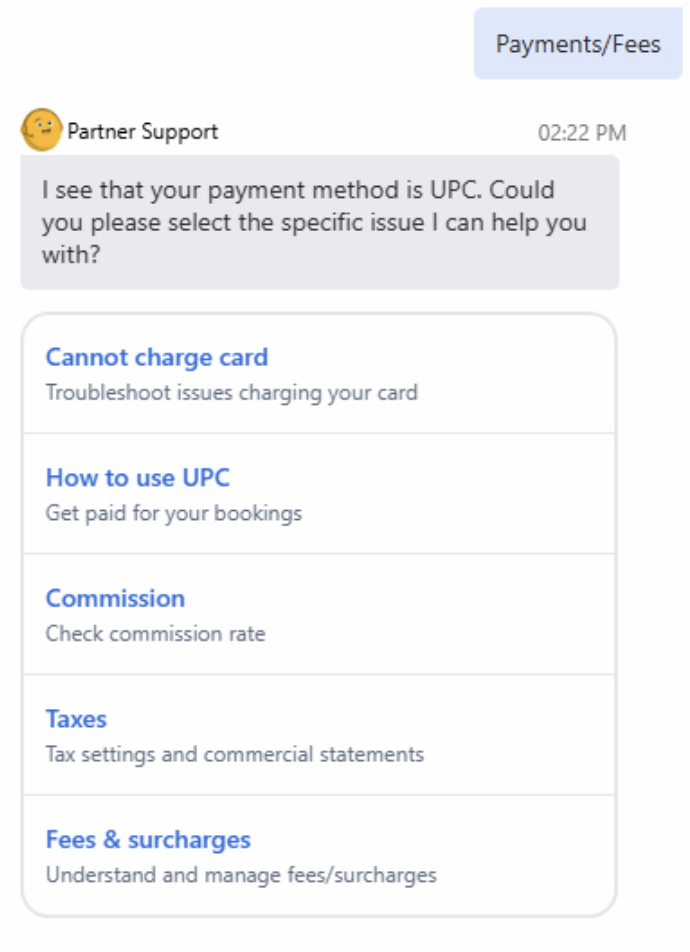
Still need a real person? The virtual assistant can connect you to our support team in just a few more clicks.
-2.png?width=300&height=89&name=Priceline%20Agoda%20Global%20Partner%20Services_Full%20Logo%20(23)-2.png)